SVCHOST.EXE is one of those mysterious processes that constantly runs in Windows and is utterly essential, yet you never know exactly what it is doing. So what is SVCHOST.EXE? Identifying the actual services and programs that are running inside each SVCHOST.EXE process is a task well worth knowing, especially when the process eats up 99 or 100 percent of your
CPU.
So before we dive into solutions, let’s get a deeper understanding of what this process actually does and how you can go about fixing some of the problems that might occur. Firstly, svchost stands for “service host” and it does exactly what as the name suggest: helps to “host” services. A service in Windows is simply a program in the operating
system that does a particular job and runs in the background at all times when your
computer is on, even if you are not logged in.
Most programs that you are familiar with run as stand-alone executables, such .EXEs. However, most services are implemented in the form of DLLs, which cannot run on their own. Hence, svchost loads those DLLs and runs them itself. That’s why when you open the Windows Task Manager, you’ll see a bunch of svchost.exe processes running. If you want more info on the Task Manger, check out my articles on understanding the Task Manager.
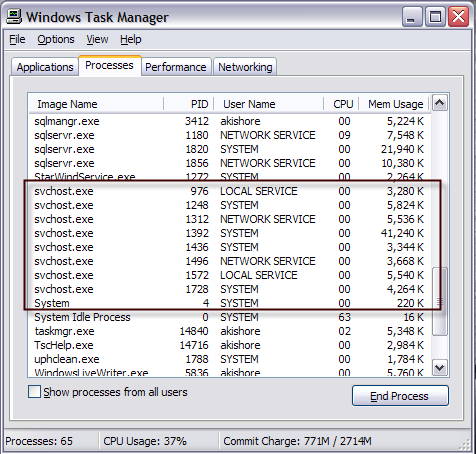
You’ll notice that there are currently eight svchost processes running on my computer, all using up various amounts of memory and running under different user names. So let’s say one of them is running at an excessively high CPU usage of 100 percent, how can we identify the actual
application running?
There are actually two ways to go about this: doing it all manually using the command prompt and Services tool or by using a third party application. I’m going to mention both here in case one does not work for you.
Identify svchost.exe processes using command prompt (hard way)
1. First, go ahead and click on
Start and then
Run and type in
CMD and click
OK
2. Type in the following into the command window and press
Enter
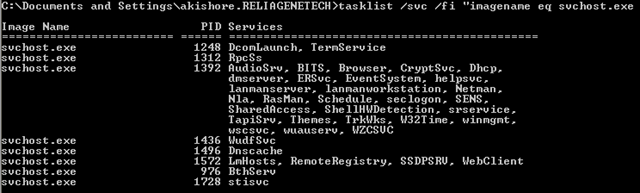
tasklist /svc /fi “imagename eq svchost.exe
You should get an output as shown below with the name, PID, and service description
You’ll now see each svchost process along with it’s unique ID number and the services it is responsible for running. However, these names are still very cryptic and are all short hand names. In order to get some more useful information about the process, we can use the Services browser in Windows.
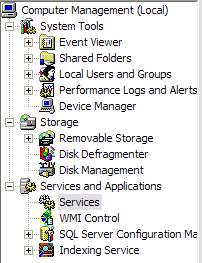
3. Right-click on
My Computer, choose
Manage. On the resulting screen, choose
Computer Management and then choose
Services and Applications. Finally, choose
Services.
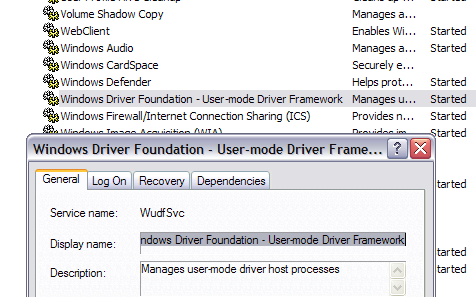
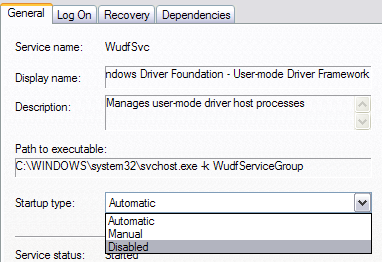
4. Now try to match the cryptic Windows service name with the easily readable names in the Services tab. This is a little and can take some time because if you take the process with ID 1436 and it’s name WudfSvc, you have to try to find it in the list. If you double-click on one the service names, you’ll see their cryptic name also, so that’s how you can match them up. In my case, I guessed that the W means the process starts with Windows… and opened them until I saw a match.
As you can see, the Windows Driver Foundation service is actually called WudfSvc also!
Use Process Explorer to find programs running as svchost.exe (easy way)
If you found to be too difficult, there is a much easier way! Check out the Process Explorer tool from Microsoft (originally from SysInternals). The tool is completely free and gives you detailed information for each process currently running.
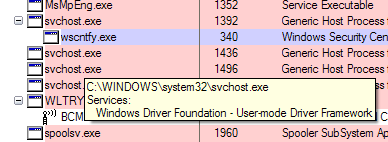
Once you download it, just run the exe file as it does not have to be installed. Hover your mouse over the svchost process and you’ll get a popup showing you which service is running under that process.
Fixing SVCHOST high CPU usage
Now that you have figured out exactly which process is eating up all of your CPU, we can address how to fix it. If you have found that the process is not a Windows process, such as Windows Update or Windows
Firewall, etc, then simply kill the process and uninstall the program.
However, most of the time that this problem occurs, it has something to do with a Windows process. The best solution in this case is to install all of the latest updates from Microsoft’s web site. If you’re not able to do so normally in Windows, try restarting the computer in safe mode and try it again.
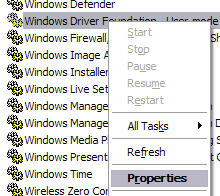
Also, if you can get to the Services tab like we did above, go ahead and right-click on the service and choose
Disable. Even if it’s Windows Update or the Firewall, don’t worry, you can re-enable it later. Then restart the computer and go to Microsoft’s web site and manually get the updates. Re-enable the service and restart the computer again and hopefully things are working!
In order to disable a service in Windows, right-click on it from the
Services tab and choose
Properties.
Next choose
Disabled from the
Startup type combo box located in the middle of the dialog box:
I have gone through this process a couple of times and it’s worked for me. So again, it’s disable the service, restart computer, install updates manually, re-enable service, and then restart computer again.